
Persistent Cart · 8 min read · Aug 21, 2026
Cart Sync for Shopify: One Persistent Cart Across Every Device and Browser
By Ritesh Vatwani
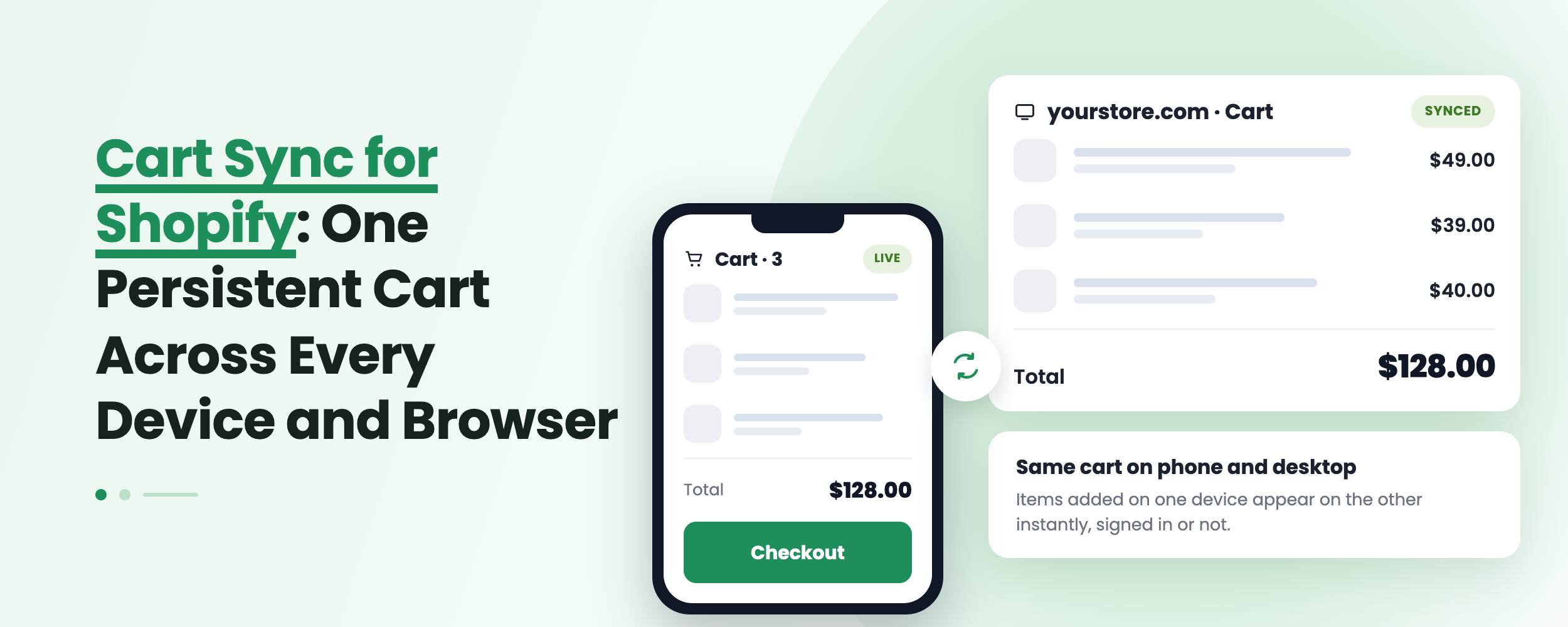
Cart sync is a persistent cart feature that ties a shopper's cart to their customer account instead of to a single browser, so the items they add on a phone are waiting for them on a laptop the moment they sign in. It runs silently in the background with no popups, no recovery emails and nothing for the customer to click. Accofy delivers cart sync for Shopify through a single app embed toggle, with sync controls, logout rules, built-in translation and analytics on the revenue your restored carts brought back.
Key Takeaways
- A normal Shopify cart lives in a browser cookie, so it disappears the moment a customer switches device, browser or session.
- Cart sync saves the cart to the customer's account as they shop and restores it automatically on their next sign-in, anywhere.
- You control whether carts sync while logged in, whether the page auto-refreshes after a sync, and what happens to the cart on logout.
- Accofy installs through a theme app embed with no Liquid edits, and reports carts saved, synced, orders created and order revenue.
Why Do Shoppers Lose Their Carts in the First Place?
The default Shopify cart is stored against a browser cookie. That single technical fact causes a lot of quiet revenue loss.
A customer browses on their phone during a commute and adds three items. That evening they open your store on a laptop to buy, and the cart is empty. Nothing is broken, the cart simply never belonged to them, it belonged to their phone's browser. The same cross-browser gap opens up when someone switches from Safari to Chrome, uses a private window, clears cookies, hits a session timeout, or moves from the Shop app to a desktop.
Faced with an empty cart, most shoppers do not patiently rebuild it. They buy fewer items than they had chosen, or they leave. The loss never shows up as an abandoned checkout because the checkout was never reached, which is exactly why it stays invisible in your reports. Abandonment tooling fires emails at carts it can see, and the carts lost to a device switch are the ones nobody is counting.
Research-heavy and high-value purchases are hit hardest. Furniture, electronics, wholesale orders and considered fashion buys are almost always browsed on one device and completed on another.
What Is a Persistent Cart, and What Is Cart Sync?
A persistent cart is a cart that survives beyond the browser session it was created in. Instead of living only in a cookie, it is stored against something more durable, and for a Shopify store the natural anchor is the customer account.
Cart sync is the mechanism that makes a persistent cart work. When a logged-in customer changes their cart, the cart is saved to their account. When they sign in somewhere new, on a different device, a different browser or a fresh session, the saved cart is restored automatically. That makes it both cross-device and cross-browser sync, since neither the hardware nor the browser is what the cart is attached to any more.
The important design point is that it happens in the background. No "restore your cart?" modal to dismiss, no email nudging them back, no merge conflict to resolve. They sign in and their cart is there.
How Does Cart Sync Work in Accofy?
Accofy treats cart sync as one module inside a wider customer account suite, so it uses the account you already have rather than bolting on a separate identity layer.
The flow is short. A logged-in customer adds, removes or updates an item in their cart. Accofy writes that cart to their customer account. When that customer signs in on any other device or browser, the saved cart is restored to the storefront. Optional auto-refresh updates the cart icon and totals the instant the sync lands, so the header count never sits one step behind the cart.
It runs alongside whatever cart you already have: a cart page, a cart drawer, a custom theme cart, all of them keep working. There are no theme code edits either. You turn on the Accofy Cart Sync app embed in your theme editor and you are live, with no Liquid, no developer, and nothing to redo when you change themes.
Every piece of cart sync text is editable per store language directly in the app, so multi-market stores do not need a separate translation app. For headless storefronts or custom checkout flows there is an optional Developer API to save and restore carts programmatically and stream sync events into your own systems, though a standard theme install needs none of it.
Does Cart Sync Work for Guests?
It is worth being direct about this. Cart sync applies to logged-in customers, because the cart is tied to their account. Guests keep their normal browser cart exactly as they do today. Nothing degrades for them, they simply do not get cross-device persistence, because there is no account to attach the cart to.
That limitation is less constraining than it used to be. Shopify's new customer accounts use passwordless, one-time code sign-in, so logging in takes seconds and no remembered password, and far more shoppers are authenticated while they browse than were two years ago. We covered that shift in the Shopify account web component guide.
Read the right way, it is a reason to make signing in worth doing. A persistent cart is a concrete benefit you can put in front of a guest: sign in and your cart follows you. Pair it with a strong account experience, such as a quick customer dashboard side panel that puts orders and reorders one tap away, and the sign-in prompt starts earning its place.
What Controls Do You Get Over Cart Behavior?
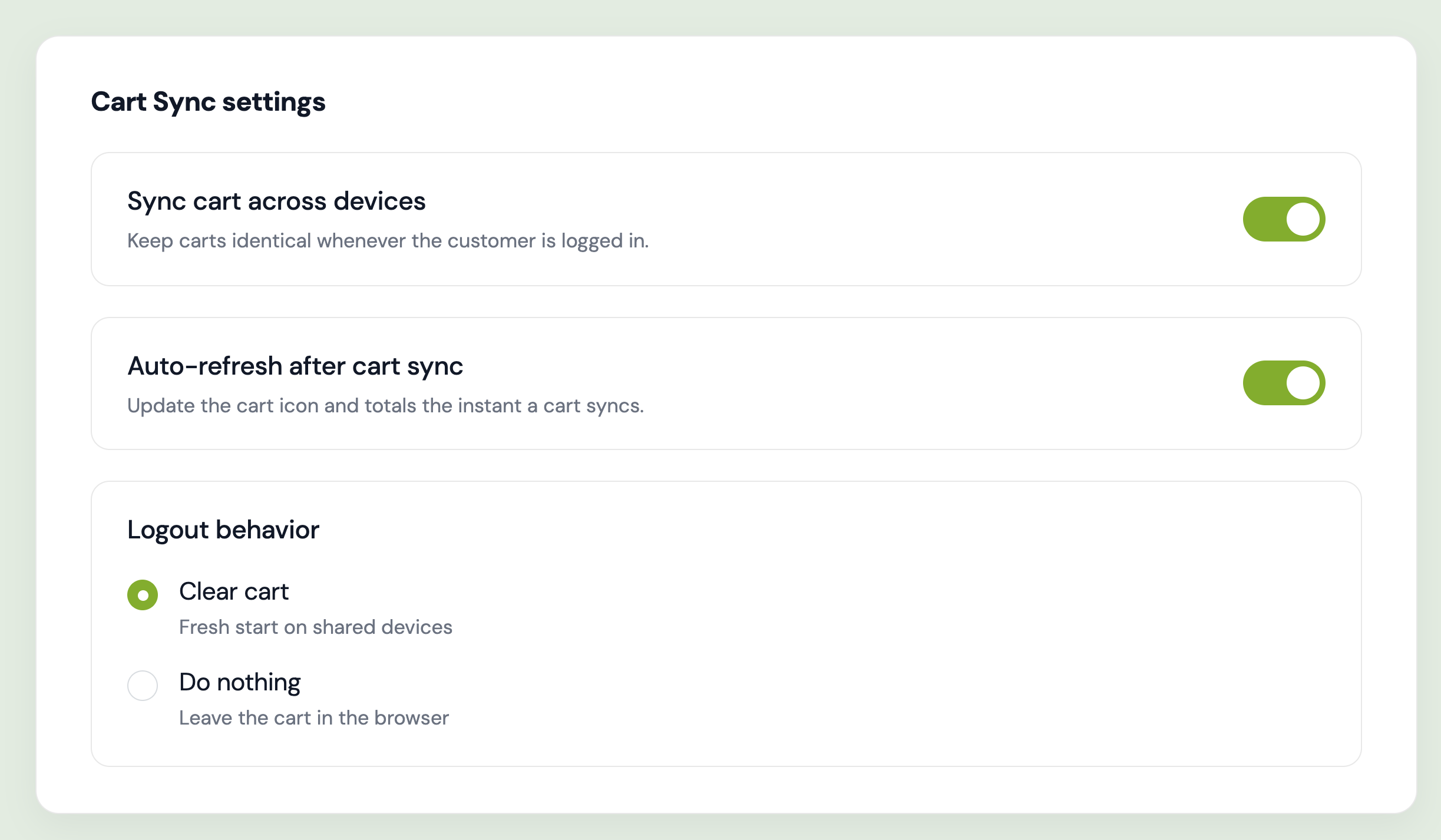
Three settings on one screen decide how carts behave.
Sync Cart Across Devices
The master switch. With it on, carts stay identical on every device and browser the customer is logged in on. This is the setting that turns a browser cart into a persistent cart.
Auto-Refresh After Cart Sync
Updates the cart icon and totals the instant a cart syncs, so the interface never falls out of step with the cart contents. Most stores want this on. Leave it off if your theme already refreshes cart state aggressively.
Logout Behavior
Choose what happens when a customer signs out. Clear cart empties the browser cart for a fresh start, which is right for shared computers, in-store tablets and family devices. Do nothing leaves the cart in the browser so a returning shopper on their own laptop picks up instantly. Either way the saved cart is preserved on their account and restores on their next login, so nothing is lost.
How Do You Measure What Cart Sync Recovers?
A persistent cart is easy to justify in theory and easy to lose track of in practice, so Accofy reports on it directly. Over any date range you get carts saved, carts synced, orders created and order revenue, each with a trend chart.
That last pair is the one that matters. A restored cart is a purchase that would otherwise have been rebuilt from scratch or abandoned outright, so you can tie the module to recovered revenue instead of guessing at it. The ratio of carts synced to carts saved is useful too: a high one means cross-device shopping is common in your store.
How Do You Set Up Cart Sync?
Install Accofy and enable the app embed. Add Accofy from the Shopify App Store, then turn on the Accofy Cart Sync app embed in your theme editor and save. That is the entire theme-side setup.
Turn on sync. Open Cart Sync settings and switch on Sync cart across devices.
Set auto-refresh and logout behavior. Enable Auto-refresh after cart sync so the cart icon updates immediately, then pick Clear cart or Do nothing for logout based on whether shared devices are common for your customers.
Translate the copy. Edit the cart sync text for each store language so it reads in your brand voice.
Test it properly. Sign in as a test customer, add items on one device, then sign in on a second device or a different browser and confirm the cart restores.
Which Stores Benefit Most From a Persistent Cart?
B2B and wholesale stores gain the most, because their carts are long, high-value and often assembled over several sessions. Losing a forty-line wholesale order to a browser switch is a serious problem, and rebuilding it is not something a buyer will do twice.
High-consideration retail follows: furniture, electronics, jewelry and anything researched on a phone and purchased on a desktop. Multi-market stores get value from the built-in translation, and stores with strong account adoption see the highest sync rates because more of their traffic is logged in. If you are still building that adoption, custom fields in the new customer account and a well-designed Shopify customer dashboard are the usual levers.
Final Thoughts
The cart is the most valuable object on your storefront, and by default it is attached to the flimsiest thing you own: a browser cookie. Cart sync moves it somewhere durable. The customer stops paying for your architecture with their own effort, you stop losing orders that never reach a checkout and therefore never reach a report, and the analytics show what the change is worth. It is a one-toggle install with no theme code, which makes cross-device cart sync one of the cheapest conversion fixes available to a Shopify store.
Ready to give your customers one cart everywhere? Install Accofy on the Shopify App Store and turn on cart sync today. Learn more at getaccofy.com.